Pro Wave (Yuri's Version)
Manual
Workflows first, then reference. Menu names are written as they appear in the app.


1Install
Download and drag
- Download
ProWave-Mac.dmg. - Open the DMG.
- Drag Pro Wave (Yuri's Version) to the Applications folder.
- Eject the DMG.
Requires macOS 11 Big Sur or later. One app runs on Apple Silicon and Intel.
First open
The app is ad-hoc signed and not notarized by Apple, so macOS blocks the first launch with a warning that it cannot check the app. Do one of these once. After that it opens normally.
A · Right-click
- In Finder, open Applications.
- Right-click (or Control-click) Pro Wave (Yuri's Version) and choose Open.
- In the dialog, click Open.
B · System Settings
- Double-click Pro Wave (Yuri's Version). Close the warning.
- Open System Settings > Privacy & Security.
- Scroll to Security. Next to the message about Pro Wave (Yuri's Version), click Open Anyway.
- Enter your password if asked, then click Open.
C · Terminal
Removes the download quarantine flag:
xattr -dr com.apple.quarantine "/Applications/Pro Wave (Yuri's Version).app"On first recording, macOS asks for microphone access. Allow it, or inputs record silence. To change it later: System Settings > Privacy & Security > Microphone.
2Free synths and effects
Free instruments and effects for macOS. Each passed Apple's Audio Unit validation on Apple Silicon. Pro Wave (Yuri's Version) finds them at its next start.
Install them all
An installer script downloads 167 of the 210 from their makers' own servers and installs them (76 of 77 synths, 91 of 133 effects). Nothing is hosted by Pro Wave. The other 43 carry a Needs account or By hand tag in the tables below: get those from the maker's page.
Makers' installers (.pkg) go where the maker puts them and need the Mac password, asked once for all of them. Loose plug-ins are copied to ~/Library/Audio/Plug-Ins/Components and ~/Library/Audio/Plug-Ins/VST3 with no password. A plug-in that a maker left unsigned is signed for this Mac only, so Apple Silicon will load it.
From the app

- Choose Window > Get Free Plug-ins.
- Check the rows to install, or click All beside Synths or Effects. Search narrows the list by name, maker or description.
- Click Install. Downloads run first. The makers' installers run at the end, and macOS asks for the password once.
- Watch the light at the right of each row: blinking is working, lit is installed. A row that fails shows Failed and the reason.
- Rows with Open Page are not fetched. The key opens the maker's page in the browser.
Cancel stops the downloads. Closing the window or quitting the app also stops them. Rows that wait for a maker's installer stay on working until the end of the run. If a newly installed plug-in is missing from the menus afterwards, restart the app.
From the download page
- On the download page, click Download all beside Free synths or Free effects. A list opens with every row checked.
- Uncheck what you do not want. Click Run script.
- Unzip. Open Install Free Synths.command or Install Free Effects.command. macOS blocks it the first time: allow it the same way as the app (chapter 1, First open).
- A Terminal window lists how many it will fetch. Press Return.
- Type the Mac password when asked.
- The last lines list what failed and what to get by hand.
From Terminal
curl -fsSL https://prowave.204.168.175.190.nip.io/free/install-free-plugins.sh | sh -s -- --kind synthUse --kind effect for effects, no --kind for both, --dry-run to download and unpack without installing, --list to print the catalog.
Synths (77)
| Synth | Maker | What it is | Download |
|---|---|---|---|
| Dexed | Digital Suburban | Yamaha DX7 FM synth. Open source. | github.com/asb2m10/dexed/releases |
| Cardinal | DISTRHO | Virtual modular synthesizer. Open source. | github.com/DISTRHO/Cardinal/releases |
| DW-303 | DJW Audio | Bass line synthesizer with step sequencer, accent and slide. Open source. | djwaudio.co/#dw-303 |
| Smoke Mono Free | DLP | Monophonic virtual analog synth by Mike Dean: sub oscillator, unison, ladder filter. | dlp.audio |
| FableSynth BL-1 | FableSynth | Acid bass on the FableSynth wavetable engine. | fablesynth.com |
| FableSynth SQ-4 | FableSynth | Session that plays the FableSynth instruments. | fablesynth.com |
| FableSynth WT-1 | FableSynth | Wavetable synth. | fablesynth.com |
| Blooo | Full Bucket Music | Classic subtractive synth, up to 64 voices. | fullbucket.de/music/blooo.html |
| BrokenMini | Full Bucket Music | Simulates an unknown, obscure synth from the 1970s. Broken on purpose. | fullbucket.de/music/brokenmini.html |
| Bucket ONE | Full Bucket Music | Simulates the Crumar BIT 01/99 (1985). | fullbucket.de/music/bucketone.html |
| BucketPops | Full Bucket Music | Simulates the Korg Mini Pops-7 rhythm machine (1966). | fullbucket.de/music/bucketpops.html |
| Deputy | Full Bucket Music | String machine and early polyphonic synth. | fullbucket.de/music/deputy.html |
| DrumTraqs | Full Bucket Music | Simulates the Sequential Circuits Drumtraks drum computer (1983). | fullbucket.de/music/drumtraqs.html |
| FB-3100 | Full Bucket Music | Simulates the Korg PS-3100 (1977). | fullbucket.de/music/fb3100.html |
| FB-3200 | Full Bucket Music | Simulates the Korg PS-3200 (1978). | fullbucket.de/music/fb3200.html |
| FB-3300 | Full Bucket Music | Simulates the Korg PS-3300 (1977). | fullbucket.de/music/fb3300.html |
| FB-7999 | Full Bucket Music | Simulates the Korg DW-6000 and DW-8000. | fullbucket.de/music/fb7999.html |
| FB3 | Full Bucket Music | Simulates the Kawai K3 (1986). | fullbucket.de/music/fb3.html |
| Fury68 | Full Bucket Music | Simulates the Korg Poly-61 (1982). | fullbucket.de/music/fury68.html |
| Fury800 | Full Bucket Music | Simulates the Korg Poly-800 (1983). | fullbucket.de/music/fury800.html |
| Kern | Full Bucket Music | Polyphonic synth built to be run from a MIDI keyboard controller. | fullbucket.de/music/kern.html |
| Matriq-Six | Full Bucket Music | Simulates the Oberheim Matrix 6R (1985). Prototype version. | fullbucket.de/music/matriqsix.html |
| ModulAir | Full Bucket Music | Modular polyphonic synth. | fullbucket.de/music/modulair.html |
| MonoFury | Full Bucket Music | Simulates the Korg Mono/Poly. | fullbucket.de/music/monofury.html |
| MPS | Full Bucket Music | Polyphonic synth with a small set of parameters. | fullbucket.de/music/mps.html |
| Nabla | Full Bucket Music | Simulates the Korg Delta DL-50 strings synth (1979). | fullbucket.de/music/nabla.html |
| NY | Full Bucket Music | Simulates the Korg Lambda ES-50 polyphonic ensemble (1979). | fullbucket.de/music/ny.html |
| Oxid | Full Bucket Music | Simulates the ARP Omni-2 (1970s). | fullbucket.de/music/oxid.html |
| Paralogy | Full Bucket Music | Simulates the Crumar Trilogy and Stratus. | fullbucket.de/music/paralogy.html |
| PECS | Full Bucket Music | Based on the Korg PE-2000 string machine (1976). | fullbucket.de/music/pecs.html |
| Qyooo | Full Bucket Music | Three filters with scene morphing, three oscillators. | fullbucket.de/music/qyooo.html |
| Ragnarok2 | Full Bucket Music | Simulates a one-of-a-kind custom analog synth from 1980. | fullbucket.de/music/ragnarok.html |
| Scrooo | Full Bucket Music | Spectral formant synth. | fullbucket.de/music/scrooo.html |
| SixTraq | Full Bucket Music | Simulates the Sequential Circuits Six-Trak (1984). | fullbucket.de/music/sixtraq.html |
| Stigma | Full Bucket Music | Simulates the Korg Sigma KP-30 (1979). | fullbucket.de/music/stigma.html |
| Tricent | Full Bucket Music | Simulates the Korg Trident mkII (1982). | fullbucket.de/music/tricent.html |
| WhispAir | Full Bucket Music | Three wavetable oscillators, all parameters on one page. | fullbucket.de/music/whispair.html |
| Arminator2 | Krakli | The original Arminator. | krakli.com |
| Arminator26 | Krakli | Revised Arminator: new interface, new features, Random. | krakli.com |
| Cygnus 26 | Krakli | New version of Cygnus, with a sampler module in place of the soundfont oscillator. | krakli.com |
| K1Ks | Krakli | 3 oscillators, 2 filters, multiple envelopes and LFOs. | krakli.com |
| Klatch | Krakli | Scanned synthesis: objects interact and change the sound over time. Randomize. | krakli.com |
| Krakli-Tone | Krakli | Home organ. | krakli.com |
| KXtra | Krakli | Hybrid FM synth with configurable operators and a randomizer. | krakli.com |
| RMPx | Krakli | Physical modelling, FM and supersaw oscillator sections. | krakli.com |
| S5 | Krakli | Ensemble keyboard: part organ, part string machine, part polysynth. | krakli.com |
| SK7 | Krakli | Styled after a 1970s synth. | krakli.com |
| Stringz3 | Krakli | Physical modelling, with a randomizer and a workbench page. | krakli.com |
| Xakt | Krakli | Combines two additive waveforms. Randomize. | krakli.com |
| ro-drums-808 | Lemus | Roland TR-808 model; MIDI plays the voices. Without your own CPU ROM there is no sequencer. Open source, beta. | github.com/lemus-dev/lemus/releases |
| ro-drums-909 | Lemus | Roland TR-909 model; MIDI plays the voices. Without your own program ROM there is no sequencer. Open source. | github.com/lemus-dev/lemus/releases |
| ro-mono-101 | Lemus | Roland SH-101 model. Without your own CPU ROM it plays from MIDI only (voice mode). Open source, beta. | github.com/lemus-dev/lemus/releases |
| ro-mono-303 | Lemus | Roland TB-303 model. Without your own CPU ROM it plays from MIDI only (voice mode). Open source. | github.com/lemus-dev/lemus/releases |
| ac-digital-vc Needs ROM | Lemus | Access Virus C: runs the real firmware, so it is silent until you add your own Virus C ROM. Open source, beta. | github.com/lemus-dev/lemus/releases |
| Pantomime 4 | Majetone | Synth. Its sample library (1.2 GB) is a separate download on the maker's page. | majetone.com/download |
| JC303 | midilab | Roland TB-303 bass line clone. Open source. | github.com/midilab/jc303/releases |
| Oxo Synth2 | Oxo Music | Synth by Oxo Music. | oxo-music.com/products/oxo_synth2 |
| plugdata | plugdata team | Visual patching environment based on Pure Data. Installs instrument, effect and MIDI versions. Open source. | github.com/plugdata-team/plugdata/releases |
| Organ | SocaLabs | Tonewheel organ with drawbars, vibrato and chorus. | socalabs.com/synths/organ |
| PAPU | SocaLabs | Nintendo Game Boy sound chip. | socalabs.com/synths/papu |
| Piano | SocaLabs | Simple sampled piano. | socalabs.com/synths/piano |
| RP2A03 | SocaLabs | Nintendo Entertainment System sound chip. | socalabs.com/synths/rp2a03 |
| SID | SocaLabs | Commodore 64 sound chip, 8 voices. | socalabs.com/synths/commodore-64-sid |
| SN76489 | SocaLabs | Sega Master System sound chip. | socalabs.com/synths/sn76489 |
| Voc | SocaLabs | Vocal synth: vowel sounds and vocal-like tones. | socalabs.com/synths/voc-vocal-synth |
| Wavetable | SocaLabs | Wavetable synth: 2 wavetable oscillators, 150 wavetables, 5 effects. | socalabs.com/synths/wavetable |
| Monique | Surge Synth Team | Monophonic synth for bass and lead. Open source. | github.com/surge-synthesizer/monique-monosynth/releases |
| OB-Xf | Surge Synth Team | Inspired by the Oberheim OB-X. Continues OB-Xd. Open source. | github.com/surge-synthesizer/OB-Xf/releases |
| Surge XT | Surge Synth Team | Hybrid synthesizer. Open source. | surge-synthesizer.github.io/downloads |
| TAL-NoiseMaker | TAL Software | Virtual analog synth. | tal-software.com/products/tal-noisemaker |
| Odin 2 | TheWaveWarden | 24-voice polyphonic synth. Open source. | thewavewarden.com/odin2 |
| RipplerX | tilr | Physically modeled synth. Open source. | github.com/tiagolr/ripplerx/releases |
| Podolski | u-he | Straightforward, CPU-efficient virtual analog synth. | u-he.com/products/podolski |
| Triple Cheese | u-he | Comb filter synth. | u-he.com/products/triplecheese |
| Tyrell N6 | u-he | Virtual analog synth. | u-he.com/products/tyrelln6 |
| Zebralette 3 By hand | u-he | One-oscillator synth from u-he's Zebra line. | u-he.com/products/zebralette3 |
| MagicalFDSPlug | YMCK | Famicom Disk System sound. | ymck.net/app/magical-fds-plug |
Effects (133)
| Effect | Maker | What it is | Download |
|---|---|---|---|
| LOFT | 13x Audio | Vintage reverb. The tail follows a curve you draw, in time with the project and in its key. | 13x.audio/products/loft |
| ADB Smart EQ | ADB Records | Adaptive EQ: four engines correct resonances and tonal balance, plus a 12-band manual EQ. | adbrecords.com/adbsmarteq |
| Airwindows Consolidated | Airwindows | The Airwindows effects in one plug-in. Open source. | github.com/baconpaul/airwin2rack/releases |
| MasterTone | Analog Obsession | Transformer-balanced active Baxandall EQ. | patreon.com/analogobsession |
| Couture Free edition | Auburn Sounds | Dynamics: transient shaping. | auburnsounds.com/products/Couture.html |
| Graillon 3 Free edition | Auburn Sounds | Live voice changer and pitch correction. | auburnsounds.com/products/Graillon.html |
| Inner Pitch 2 Free edition | Auburn Sounds | Pitch changer. | auburnsounds.com/products/InnerPitch.html |
| Lens Free edition | Auburn Sounds | Multiband compander. | auburnsounds.com/products/Lens.html |
| Panagement 2 Free edition | Auburn Sounds | Binaural panning, distance and reverb. | auburnsounds.com/products/Panagement.html |
| Renegate Free edition | Auburn Sounds | Gate. | auburnsounds.com/products/Renegate.html |
| Chorus | Blue Cat Audio | Chorus, from light ensemble to deep modulation. | bluecataudio.com/Products/Product_Chorus |
| Flanger | Blue Cat Audio | Flanger. | bluecataudio.com/Products/Product_Flanger |
| Free Amp | Blue Cat Audio | Guitar and bass amp simulation, four amp models. | bluecataudio.com/Products/Product_FreeAmp |
| FreqAnalyst | Blue Cat Audio | Spectrum analyzer. | bluecataudio.com/Products/Product_FreqAnalyst |
| Gain | Blue Cat Audio | Gain utilities that can link several tracks. | bluecataudio.com/Products/Product_GainSuite |
| Phaser | Blue Cat Audio | Modeled after vintage analog phaser circuits. | bluecataudio.com/Products/Product_Phaser |
| Triple EQ | Blue Cat Audio | 3-band semi-parametric equalizer. | bluecataudio.com/Products/Product_TripleEQ |
| BYOD | chowdsp | Build-your-own guitar distortion from modules. Open source. | chowdsp.com/products.html |
| CHOW Tape Model | chowdsp | Analog tape machine model. Open source. | chowdsp.com/products.html |
| ChowCentaur | chowdsp | Klon Centaur overdrive pedal model. Open source. | chowdsp.com/products.html |
| ChowMatrix | chowdsp | Delay built from a tree of delay lines. Open source. | chowdsp.com/products.html |
| ChowMultiTool | chowdsp | EQ, waveshaper, band splitter and other tools in one. Open source. | chowdsp.com/products.html |
| ChowPhaser | chowdsp | Phaser. Open source. | chowdsp.com/products.html |
| Sol | Dawesome | Textural ambient reverb. | dawesomemusic.com/downloads |
| Brigade Delay | Full Bucket Music | Simulates classic analog delays. | fullbucket.de/music/fbdelay.html |
| FBVC | Full Bucket Music | Simulates the Korg VC-10 vocoder (1978). | fullbucket.de/music/fbvc.html |
| Frequency Shifter | Full Bucket Music | Frequency shifter. | fullbucket.de/music/freqshifter.html |
| Grain Strain | Full Bucket Music | Granular effect. | fullbucket.de/music/grainstrain.html |
| Phaser | Full Bucket Music | Simulates classic analog phasers. | fullbucket.de/music/fbphaser.html |
| Glitch 2 | Illformed | Sequenced glitch effects. | illformed.com/glitch |
| Aurora | Joe Croskey | Meter and visualiser: waveform, spectrum, stereo, 3D. Audio passes through unchanged. Open source, preview. | joecroskey.com/Aurora |
| Choroboros | Kaizen DSP | Chorus. Two of its engines (Green and Purple) are free; the others need a paid licence. | kaizendsp.com/download |
| 3-Band EQ Needs account | Kilohearts | 3-band EQ. | kilohearts.com/products/3band_eq |
| Bitcrush Needs account | Kilohearts | Low sample rate and bit depth. | kilohearts.com/products/bitcrush |
| Channel Mixer Needs account | Kilohearts | Stereo and phase utility. | kilohearts.com/products/channel_mixer |
| Chorus Needs account | Kilohearts | Chorus. | kilohearts.com/products/chorus |
| Clipper Needs account | Kilohearts | Peak trimming. | kilohearts.com/products/clipper |
| Comb Filter Needs account | Kilohearts | Cuts frequencies at intervals. | kilohearts.com/products/comb_filter |
| Compactor Needs account | Kilohearts | Sidechain ducking. | kilohearts.com/products/compactor |
| Compressor Needs account | Kilohearts | Compressor. | kilohearts.com/products/compressor |
| Delay Needs account | Kilohearts | Delay. | kilohearts.com/products/delay |
| Distortion Needs account | Kilohearts | Distortion. | kilohearts.com/products/distortion |
| Dual Delay Needs account | Kilohearts | Crossfeeding echoes. | kilohearts.com/products/dual_delay |
| Dynamics Needs account | Kilohearts | Compression and expansion. | kilohearts.com/products/dynamics |
| Ensemble Needs account | Kilohearts | Moving chorus. | kilohearts.com/products/ensemble |
| Filter Needs account | Kilohearts | Common filter types. | kilohearts.com/products/filter |
| Flanger Needs account | Kilohearts | Flanger. | kilohearts.com/products/flanger |
| Formant Filter Needs account | Kilohearts | Vocal coloring. | kilohearts.com/products/formant_filter |
| Frequency Shifter Needs account | Kilohearts | Frequency shifter. | kilohearts.com/products/frequency_shifter |
| Gain Needs account | Kilohearts | Volume control. | kilohearts.com/products/gain |
| Gate Needs account | Kilohearts | Gate. | kilohearts.com/products/gate |
| Haas Needs account | Kilohearts | Stereo widening. | kilohearts.com/products/haas |
| Ladder Filter Needs account | Kilohearts | Ladder filter. | kilohearts.com/products/ladder_filter |
| Limiter Needs account | Kilohearts | Limiter. | kilohearts.com/products/limiter |
| Nonlinear Filter Needs account | Kilohearts | Coloring filter. | kilohearts.com/products/nonlinear_filter |
| Phase Distortion Needs account | Kilohearts | Phase modulation. | kilohearts.com/products/phase_distortion |
| Phaser Needs account | Kilohearts | Phaser. | kilohearts.com/products/phaser |
| Pitch Shifter Needs account | Kilohearts | Pitch shifter. | kilohearts.com/products/pitch_shifter |
| Resonator Needs account | Kilohearts | Harmonic resonance. | kilohearts.com/products/resonator |
| Reverb Needs account | Kilohearts | Reverb. | kilohearts.com/products/reverb |
| Reverser Needs account | Kilohearts | Reversed echo. | kilohearts.com/products/reverser |
| Ring Mod Needs account | Kilohearts | Ring modulator. | kilohearts.com/products/ring_mod |
| Shaper Needs account | Kilohearts | Distortion with custom shapes. | kilohearts.com/products/shaper |
| Stereo Needs account | Kilohearts | Width and panning. | kilohearts.com/products/stereo |
| Tape Stop Needs account | Kilohearts | Tape speed simulation. | kilohearts.com/products/tape_stop |
| Trance Gate Needs account | Kilohearts | Sequenced gate. | kilohearts.com/products/trance_gate |
| Transient Shaper Needs account | Kilohearts | Attack shaping. | kilohearts.com/products/transient_shaper |
| DC1A By hand | Klanghelm | Character compressor. | klanghelm.com/contents/products/DC1A.html |
| IVGI By hand | Klanghelm | Saturation and distortion. | klanghelm.com/contents/products/IVGI.html |
| MJUC jr. By hand | Klanghelm | Variable-tube compressor. | klanghelm.com/contents/products/MJUCjr.html |
| SoundStage AU By hand | OneTakz | Stereo field visualizer, 2D and 3D. Audio passes through unchanged. | onetakz.com |
| ABTester | SocaLabs | Switches between A and B inputs for comparison. | socalabs.com/developer-tools/abtester |
| AddInvert | SocaLabs | Adds or inverts left and right channels. | socalabs.com/developer-tools/addinvert |
| BitCrusher | SocaLabs | Bit crusher. | socalabs.com/effects/bitcrusher |
| ChannelMute | SocaLabs | Mutes left or right channel. | socalabs.com/developer-tools/channelmute |
| CompensatedDelay | SocaLabs | Delay that reports itself to the host for compensation. | socalabs.com/developer-tools/compensateddelay |
| Compressor | SocaLabs | Mono or stereo compressor with soft knee. | socalabs.com/effects/compressor |
| Correlation | SocaLabs | Stereo phase correlation and balance meter. | socalabs.com/analysis/correlation |
| Crossfeed | SocaLabs | Crossfeed for headphones. | socalabs.com/effects/crossfeed |
| Delay | SocaLabs | Stereo delay with feedback and mix. | socalabs.com/effects/delay |
| Expander | SocaLabs | Mono or stereo expander. | socalabs.com/effects/expander |
| Gate | SocaLabs | Mono or stereo noise gate. | socalabs.com/effects/gate |
| GraphicEQ | SocaLabs | Graphic equalizer. | socalabs.com/effects/graphiceq |
| HugeGain | SocaLabs | Gain from -100 dB to +100 dB. | socalabs.com/developer-tools/hugegain |
| Limiter | SocaLabs | Mono or stereo limiter. | socalabs.com/effects/limiter |
| Loudness | SocaLabs | LUFS, true peak and RMS meter. | socalabs.com/analysis/loudness |
| Maths | SocaLabs | Mathematical operations on audio. | socalabs.com/developer-tools/maths |
| Mverb2020 | SocaLabs | Plate reverb based on the work of Martin Eastwood. | socalabs.com/effects/mverb2020 |
| Oscilloscope | SocaLabs | Stereo oscilloscope. | socalabs.com/analysis/oscilloscope |
| PitchTrack | SocaLabs | Shows detected pitch and cents offset. | socalabs.com/analysis/pitchtrack |
| SampleDelay | SocaLabs | Delays audio by a number of samples. | socalabs.com/effects/sampledelay |
| SimpleVerb | SocaLabs | CPU-efficient reverb. | socalabs.com/effects/simpleverb |
| SpectrumAnalyzer | SocaLabs | Spectrum analyzer. | socalabs.com/analysis/spectrumanalyzer |
| StereoEnhancer | SocaLabs | Widens or narrows the stereo image. | socalabs.com/effects/stereoenhancer |
| StereoProcessor | SocaLabs | Mid/side encoding and decoding. | socalabs.com/effects/stereoprocessor |
| VU | SocaLabs | Pair of analogue-style VU meters. | socalabs.com/analysis/vu |
| XYScope | SocaLabs | XY oscilloscope for stereo signals. | socalabs.com/analysis/xyscope |
| PaulXStretch | Sonosaurus | Extreme time stretching. Open source. | sonosaurus.com/paulxstretch |
| Neural Amp Modeler | Steven Atkinson | Plays deep-learning models of guitar amps and pedals. Open source. | neuralampmodeler.com |
| Surge XT Effects | Surge Synth Team | The Surge XT effects as a plug-in. Installed with Surge XT. Open source. | surge-synthesizer.github.io/downloads |
| TAL-Bitcrusher | TAL Software | Bit crusher. | tal-software.com/products/tal-bitcrusher |
| TAL-Chorus-LX | TAL Software | Chorus. | tal-software.com/products/tal-chorus-lx |
| TAL-Filter-2 | TAL Software | Filter. | tal-software.com/products/tal-filter |
| TAL-Reverb-3 | TAL Software | Reverb. | tal-software.com/products/tal-reverb |
| TAL-Reverb-4 | TAL Software | Reverb. | tal-software.com/products/tal-reverb-4 |
| TAL-Vocoder-2 | TAL Software | Vocoder. | tal-software.com/products/tal-vocoder |
| T-De-Esser 2 | Techivation | De-esser. | techivation.com/t-de-esser |
| Tilt EQ | Techivation | Tilt equalizer. | techivation.com/tilt-eq |
| TDR Kotelnikov | Tokyo Dawn Labs | Wideband compressor for stereo bus work. | tokyodawn.net/tdr-kotelnikov |
| TDR Molotok | Tokyo Dawn Labs | Compressor with a range of colours. | tokyodawn.net/tdr-molotok |
| TDR Nova | Tokyo Dawn Labs | Dynamic equalizer. | tokyodawn.net/tdr-nova |
| TDR Prism | Tokyo Dawn Labs | Spectrum analyzer. | tokyodawn.net/tdr-prism |
| TDR VOS SlickEQ | Tokyo Dawn Labs | Mixing and mastering equalizer. | tokyodawn.net/tdr-vos-slickeq |
| Protoverb | u-he | Experimental research reverb. | u-he.com/products/protoverb |
| Valhalla FreqEcho By hand | Valhalla DSP | Frequency shifter plus analog echo. | valhalladsp.com/shop/delay/valhalla-freq-echo |
| Valhalla SpaceModulator By hand | Valhalla DSP | Flanger, eleven algorithms. | valhalladsp.com/shop/modulation/valhalla-space-modulator |
| Valhalla Supermassive By hand | Valhalla DSP | Massive reverbs and delays, 22 modes. | valhalladsp.com/shop/reverb/valhalla-supermassive |
| AnSpec | Voxengo | Analog-style spectrum analyzer. | voxengo.com/product/anspec |
| Beeper | Voxengo | Inserts beeps, noise bursts or silence. | voxengo.com/product/beeper |
| Boogex | Voxengo | Guitar amp with cabinet modeling, gate and reverb. | voxengo.com/product/boogex |
| Correlometer | Voxengo | Multi-band correlation meter. | voxengo.com/product/correlometer |
| Latency Delay | Voxengo | Compensates latency that other plug-ins do not report. | voxengo.com/product/latencydelay |
| Marvel GEQ | Voxengo | Linear-phase 16-band graphic equalizer. | voxengo.com/product/marvelgeq |
| MSED | Voxengo | Mid/side encoder and decoder. | voxengo.com/product/msed |
| OldSkoolVerb | Voxengo | Classic stereo reverb, plate to hall. | voxengo.com/product/oldskoolverb |
| Overtone GEQ | Voxengo | 7-band harmonic graphic equalizer. | voxengo.com/product/overtonegeq |
| Sound Delay | Voxengo | Delay set in milliseconds and samples. | voxengo.com/product/sounddelay |
| SPAN | Voxengo | FFT spectrum analyzer. | voxengo.com/product/span |
| Stereo Touch | Voxengo | Stereo widening for mono tracks. | voxengo.com/product/stereotouch |
| Tempo Delay | Voxengo | Tempo-based delay with filter and tremolo. | voxengo.com/product/tempodelay |
| TEQ-421 | Voxengo | Triple equalizer. | voxengo.com/product/teq421 |
| OTT | Xfer Records | Multiband upward and downward compressor. | xferrecords.com/freeware |
| Youlean Loudness Meter 2 | Youlean | Loudness meter: LUFS, LRA, PLR. | youlean.co/youlean-loudness-meter |
3Audio setup
Pro Wave (Yuri's Version) drives Core Audio directly. Input and output run in one callback on one clock. With the same device for input and output, it opens that device directly. With two devices, it builds a hidden aggregate device and macOS keeps the input in step with the output's clock.
Output and input device
- Show the Mixer: X.
- On an audio track's strip, click the Input slot.
- Output Device ▸ pick the interface (or System Default).
- Input Device ▸ pick the interface.
- Pick the strip's input: a mono input or a stereo pair.
Device choices are kept on this computer, not in the project. File > Project Settings > Audio… shows the current output device and sample rate (read only). The sample rate is the device's current rate.
For lowest latency, use one audio interface for both input and output.
Record and Mix modes
The LATENCY chip in the control bar's MONITOR group shows RECORD or MIX and the round-trip time in ms. Click it, or press Shift-Cmd-L (Record > Record / Mix Mode). Playback continues while it switches.
| Mode | I/O Buffer | Process Buffer | Low Latency Mode | Use for |
|---|---|---|---|---|
| RECORD | 64 samples | Small (256) | On | Playing and recording |
| MIX | 1024 samples | Large (1024) | Off | Heavy plug-ins |
Each mode remembers its own buffer settings: change the I/O Buffer Size or Process Buffer while in a mode and that mode keeps the new value. Record > Switch to Record Mode When Arming (on by default) switches to RECORD when a track is armed. A project opened with armed tracks does not switch.
I/O Buffer Size and Process Buffer
Buffer time = samples ÷ sample rate. At 48 kHz: 32 = 0.67 ms · 64 = 1.33 ms · 128 = 2.67 ms · 256 = 5.33 ms · 512 = 10.67 ms · 1024 = 21.33 ms. The device adds its own input and output latency on top.
Both settings are kept on this computer.
Monitoring and Low Latency Mode
Tracking with effects in your headphones: RECORD mode, Software Monitoring on, I/O buffer 32 or 64. Tracking a source you monitor on a mixer or interface: Software Monitoring off.
Recorded takes are moved earlier by the device's reported output + input latency, so they line up with what you heard.
CPU meter
The CPU row in the LCD's status column has five bars. They show the higher of two readings: Live (the I/O callback's time ÷ the buffer's time) and Playback (the playback threads). Both are peaks, because one slow buffer is enough to click.
After an overload the CPU label turns into an inverted OVL chip. Hover the meter for Live %, Playback %, the heaviest plug-in and its share, and the overload count.
High Playback: raise Record > Process Buffer. High Live: raise the I/O Buffer Size, or switch to MIX.
4Quick start
Make a beat with the Channel Rack
- Window > Channel Rack. It opens in the pane under the tracks. If the selected track has no rack, click New Channel Rack Track.
- Add Channel… and pick samples (several at once). Row k plays note C1 + k.
- Click steps. Steps are ordinary MIDI notes in the track's region, so the Piano Roll shows them too.
- Lengthen the region on the timeline for 32 or 64 steps.
- Velocity and swing: open the region in the Piano Roll (P) and use the Velocity lane and Time Quantize swing.
Record and tune a vocal
- Switch to RECORD. Make an audio track, pick its input on the strip's Input slot.
- Click R in the track header to arm it.
- On the strip, empty Audio FX slot ▸ Pro Wave Tune. Pick a preset, key and scale.
- Press R (or REC in the control bar). Space stops.
- Fix single notes: double-click the region to open the Pitch Editor. Or draw target pitches in the Pitch Correction lane.
Write a sung top line
- Track > New Vocal Top Line Track.
- Draw the melody in the Piano Roll (P).
- Select the notes, press Return and type one word per note; Tab moves on.
- The singer sings it on the Vocal track a moment after you stop editing. See chapter 9.
Mix
- Switch to MIX for the most plug-in headroom.
- X shows the Mixer. Audio FX slots take Pro Wave's effects and every installed AU and VST3, one submenu per maker.
- Sends go to Bus 1–8; routing a send or output to a bus creates its Aux strip.
- The Stereo Out strip has its own effect chain with the same menu.
- A = Automation Mode, B = Draw Mode. Touch a control to make it the lane's parameter.
Bounce
- File > Bounce > Project or Section….
- Pick Range, Format and Bit Depth; Tracks: Mix, Each Track, or both.
- Bounce, then choose where to save. See chapter 12.

5Instruments
The Instrument slot on a Mixer strip. Empty: a click opens the menu. Loaded: a click opens the instrument, a right-click opens the menu. Menu: Open (when loaded) · Channel Rack · 808 · Singer · one submenu per plug-in maker (AU and VST3 together) · Prefer VST3 (when a plug-in exists in both formats) · Remove (when loaded).
Channel Rack

- Opens with Window > Channel Rack, or by picking Channel Rack in an Instrument slot, in the pane under the tracks.
- Up to 64 channels, one sample each (wav, aif, aiff, flac, mp3, caf, ogg, m4a). Channel k plays note C1 + k.
- Each row: M mute, the sample slot (click to choose; right-click ▸ Remove Channel), gain −48 to +12 dB.
- Steps are sixteenth notes at velocity 100 in the track's selected (or first) MIDI region; with none, a 1-bar region is made. 16–64 steps, following the region length.
- Not built: swing, per-step velocity, pan control. Use the Piano Roll for velocity and swing.
808

A tuned mono 808 bass. Instrument slot ▸ 808. Click the filled slot to open its window; Reset returns the knobs to their defaults and keeps Legato and Sustain.
- Source: the Synthesizer key (default: a sine with a falling pitch envelope), or a sample from the field's menu ▸ Choose… (wav, aif, aiff, flac, mp3, caf). A sample's fundamental is measured (25–140 Hz) and shown in the ROOT display as Hz, note and cents. Drag it to correct it: 0.1 Hz per point, Shift 0.01; 20–400 Hz.
- Legato (on): a note that overlaps a held one slides to its pitch without restarting. Off: every note restarts, sliding from the last pitch when Glide is above 0.
- Sustain (samples only, off): a one-shot no longer ends where its file ends; a loop of its tail holds and Decay sets the length.
- One voice: a new note cuts the last with a 4 ms fade. Letting go of the sounding note while others are held slides back to the last of them. Pitch bend ±2 semitones. Glide takes the same time for any interval.
- Every knob can be automated. Settings are saved in the project.
| Knob | Range | Default |
|---|---|---|
| Decay | 0.05–60 s | 1.6 s |
| Release | 0.005–20 s | 0.08 s |
| Glide | 0–1000 ms | 60 ms |
| Saturate | 0–100% | 25% |
| Punch (pitch drop at the start) | 0–48 semitones | 12 |
| Punch Time | 2–300 ms | 45 ms |
| Tune | ±24 semitones | 0 |
| Level | −48 to +12 dB | −6 dB |
| Sine · Square (waves mixed in under the voice) | 0–100% | 0% |
| High Pass (24 dB per octave) | Off (20 Hz) to 1000 Hz | Off |
Singer
Instrument slot ▸ Singer: sings the track's notes and lyrics. See Vocal Top Line and Singer.
SoundFonts
Inspector, Track section ▸ SoundFont: Choose SoundFont… · the file's presets · Remove SoundFont. .sf2 files up to 512 MB, 64 notes at once, drum kits on bank 128. None ship with the app.
AU and VST3 instruments
Instrument slot ▸ maker submenu. A plug-in in both formats appears once with AU / VST3 buttons; AU is used unless Prefer VST3 is ticked. VST3-only entries read "(VST3)". See Plug-in hosting for windows, state and crash quarantine.
6Effects
Audio FX menu
Click an empty Audio FX slot on any strip, Stereo Out included:
- Lemon Limiter
- Press
- Lemon Transient Processor
- Lemon Soft Clipper
- Lemon Fast Distortion
- Pro Wave Tune
- Space Designer (while the strip has fewer than 8 built-in effects)
- One submenu per plug-in maker: every installed AU and VST3 effect
A filled slot: double-click opens its window. Its menu: Open · Bypass · Move Up · Move Down · Remove.
Older projects may carry Channel EQ, Compressor, Tape Delay, Chorus, Phaser, Overdrive, Filter, Noise Gate, Limiter, Multi-Band EQ or Amp Designer. These still play, but are no longer in the menu.
Lemon effects and Press
Native ports of open-source (GPL-3.0) recreations of FL Studio effects. Values are stored as FL's own knob values and shown with FL's own text. Every parameter can be automated. Each window is a rack unit: an ON key, an LCD, one knob with a readout per parameter, and a RESET key. There are no presets. On a track they run in the plug-in chain; their delay is made up by delay compensation.
Lemon Limiter
Modelled on FL Studio's Fruity Limiter. Gain → RMS compressor with knee → look-ahead peak limiter → noise gate → ceiling with optional soft saturation.
| Parameter | Default |
|---|---|
| Gain | 0 dB |
| Soft saturation threshold | 0 dB |
| Limiter ceiling | 0 dB |
| Limiter attack / curve | 2 ms / 3 |
| Limiter release / curve | 85.53 ms / 3 |
| Limiter peak window | 10 ms |
| Comp threshold · ratio · knee | 0 dB · 1:1 · 0% |
| Comp attack · release · curve | 0 ms · 248 ms · 1 |
| Comp RMS window | 1 ms |
| Noise gain · threshold · release | 0 dB · off · — |
| 0.2 dB limiter safety | On |
Comp ratio runs from 1:4 (expansion) to 20:1. Latency = limiter attack (look-ahead): 2 ms by default.

Press
Multiband maximiser modelled on FL Studio's Maximus. Low cut → optional oversampling → LOW / MID / HIGH split (standard or linear-phase) → each band and the MASTER sum: separation, detector, attack/release, look-ahead, gain, saturation.
| Global | Default |
|---|---|
| Low band frequency (30 Hz–16 kHz) · slope 12/24 dB | 200 Hz · 24 dB |
| High band frequency · slope | 3 kHz · 24 dB |
| LMH look-ahead delay · LMH mix | 2 ms · 100% |
| Low cut (Off, 5–80 Hz) | 20 Hz |
| Oversampling 1×–16× | 1× |
| Linear-phase crossover · Mid trigger · 0.2 dB safety | Off · Off · On |
Per band (LOW, MID, HIGH, MASTER; 13 each): Mode (on / compression off / muted / off) · Pre gain · Post gain · Stereo separation · Soft saturation threshold and ceiling · Attack · Release 2 · curve · Release · curve · Sustain window · PEAK/RMS. 63 parameters in all.
Oversampling can only be lowered while running; a higher setting applies when the effect is next opened. The gain curves are fixed. Latency about 4 ms at defaults.

Lemon Transient Processor
Modelled on FL Studio's Fruity Transient Processor. Shapes the band above the split frequency.
| Parameter | Range · default |
|---|---|
| Attack | −60 to +40% · 0 |
| Drive | default −20 dB |
| Release | −100 to +60% · 0 |
| Gain | ±9 dB · 0 |
| Attack / Release shape | Sharp / Mid / Slow · Mid |
| Split frequency | 5–1000 Hz · 254 Hz |
| Split balance | Centred |
| Processing | On |
Latency 0.

Lemon Soft Clipper
Modelled on FL Studio's Fruity Soft Clipper. Samples above the threshold bend onto a smooth curve.
| Parameter | Range · default |
|---|---|
| Threshold | about −42 to 0 dB · −2.1 dB |
| Post gain | −∞ to +5.6 dB · 0 dB |
Latency 0.
Lemon Fast Distortion
Modelled on FL Studio's Fruity Fast Dist. Waveshaper.
| Parameter | Range · default |
|---|---|
| Pre amp | default 0 dB |
| Threshold | 1–10 · 10 |
| Type | A / B · A |
| Mix | 0–100% · 100% |
| Post gain | default 0 dB |
Latency 0.


Pro Wave Tune
Live pitch correction. Add it from an empty Audio FX slot ▸ Pro Wave Tune. It opens as the PT-1 unit.

| Control | Range | Default |
|---|---|---|
| Retune Speed | 0–400 ms | 20 ms |
| Humanize | 0–100% | 0 |
| Flex-Tune | Off, up to 200 cents | Off |
| Vibrato | 0–200% | 100% |
| Add Vibrato | 0–100 cents | 0 |
| Vibrato Rate | 3–8 Hz | 5.5 Hz |
| Amount | 0–100% | 100% |
| Formant | ±12 semitones | 0 |
| Throat | 50–200% | 100% |
| Transpose | ±24 semitones | 0 |
| Voice | Soprano · Alto/Tenor · Low Male · Instrument | Alto/Tenor |
| Mix | 0–100% | 100% |
A Pitch Override parameter (automatable) holds the output on one note; the status line shows it and the latency. Latency 8 ms, reported to delay compensation. Set the project key with the Key: menu at the top of the Score tab in the editor pane (new projects are C major). Reference tuning: File > Project Settings > Tuning…. Note names: C3 = MIDI 60.
To draw target pitches over time, use the Pitch Correction lane.
Space Designer

Convolution reverb. Six impulse responses are generated in the app: 03.0s Long Reverb (default), 01.2s Medium Hall, 00.5s Small Room, Plate, Church, 02.0s Hall. Latency 512 samples (bypassed on live tracks in Low Latency Mode).
Mix > Space Designer: Show (on the selected track), and three presets that go on the Stereo Out: Mastering Glue - Small Room, Mastering Plate - Vocal Sheen, Mastering Wide Hall. Loading your own impulse response files is not built.
Stereo Out plug-in chain
The Stereo Out strip's Audio FX slots take the same menu as a track: Pro Wave's effects, Space Designer and every AU/VST3. Master effects run on each whole block of the mix before the master fader. The chain is saved in the project. Hover a slot to see its latency.
Automate it: Track > Show Master Track, then Automation Mode (A). A lane under the Master row picks volume or any master effect parameter.
Plug-in hosting (Audio Unit + VST3)
~/Library/Audio/Plug-Ins/VST3 and /Library/Audio/Plug-Ins/VST3 are scanned in the background, each in a helper process (6 at a time, 30 s limit each). Results are cached; only new or changed bundles are scanned again. Menus refresh when the scan ends.
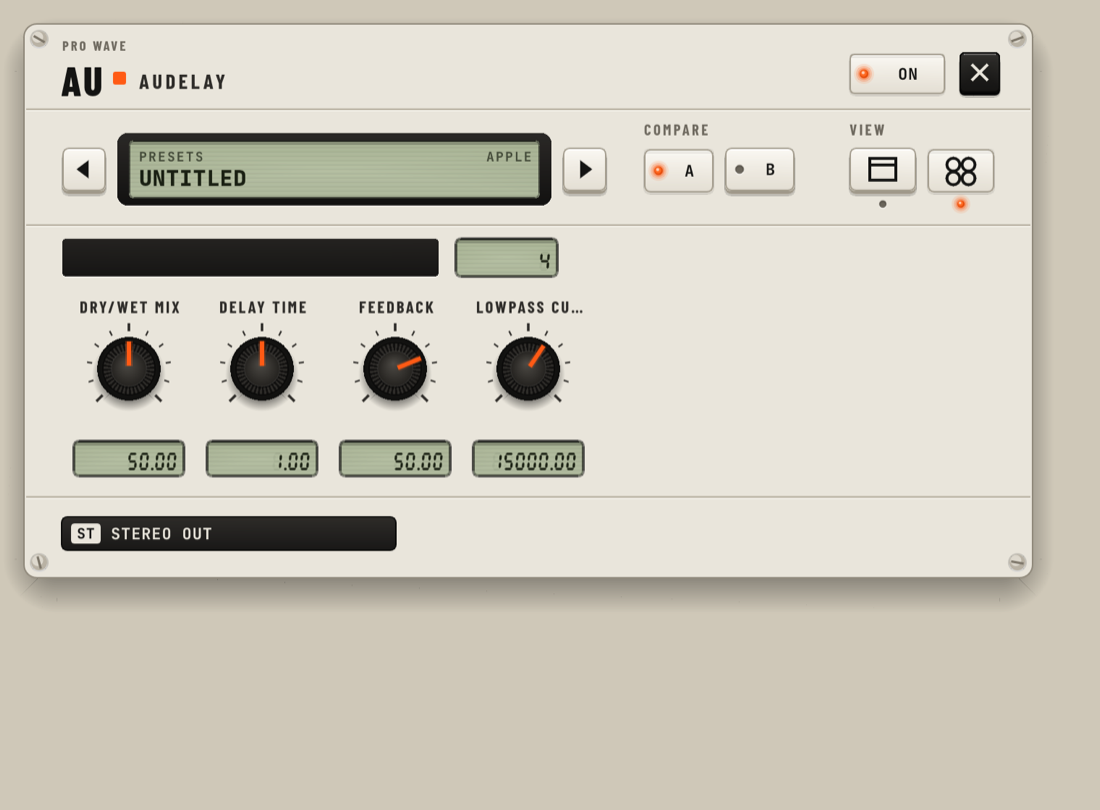
Crash quarantine
Plug-ins run inside the app's process, so a plug-in crash takes the app down (your work is in the recovery copy). A block a plug-in returns with invalid numbers in it is made silent. Pro Wave (Yuri's Version) notes which plug-in is opening. If the app dies while it opens, the next start turns that plug-in off, marks it ⚠ in the menus, and opens projects without it. The status line says it crashed and is turned off.
- To try it again: pick it again in its slot.
- The list:
~/Library/Application Support/prowave-mac/plugin-quarantine. Delete the file to clear all. - A VST3 bundle that crashed or hung the scan is left out of the menus. It is scanned again when the bundle is updated, or after removing its
vst3-bundle:line from that file.
7Arranging in the Tracks area
Modelled on Logic Pro's Tracks area: the same tools, menu names and keys. Menus show only entries that work.

Tools

T with the pointer over the Tracks area opens the Tool menu at the pointer. Press a tool's key or click it; Esc or a click elsewhere closes it. The menu sets the left-click tool. The toolbar has two tool keys: the Left-click Tool (default Pointer) and the Command-click Tool (default Marquee). Hold Cmd to use the second.
| Tool | Key | Click / drag |
|---|---|---|
| Pointer | T | Click selects. Drag moves the selection, snapped, also to other tracks of the same kind; Option held when you let go drops a copy. Drag on an empty lane: rubber-band selection. Region edges: see below. |
| Pencil | P | Click an empty lane of an instrument or External MIDI track: an empty 1-bar MIDI region. On a region it acts as the Pointer. |
| Eraser | E | Deletes the clicked region. |
| Marquee | R | Drag selects a stretch of time across tracks, on the Snap grid. Shift moves the nearer edge or takes in more tracks. Click clears it. |
| Text | Shift-T | Renames the clicked region in place (the whole selection if the region is selected, numbered). |
| Scissors | I | Cuts at the snapped position (an orange line shows where). On a selected region, cuts every selected region under that point. Option-click: equal pieces the length of the first. |
| Join | J | Joins the region with the next region on its track. |
| Mute | M | Mutes or unmutes the region (the whole selection if it is selected). |
| Solo | S | Hold the button on a region: it plays alone from that point. Let go to stop. |
| Zoom | Y | Click zooms in ×2 at the click; Option-click zooms out; drag a rectangle to zoom to it. |
| Fade | A | Audio: drag in the left half = fade-in, right half = fade-out. See Fades and crossfades. |
| Gain | G | Drag an audio region up or down: 1 dB per 10 points, 0.5 dB steps, −96 to +24 dB. Acts on all selected audio regions. |
- Region edges (Pointer): lower half of the right edge resizes the end (Option: time-stretch audio); lower half of the left edge moves the start, the content stays in place; upper half of the right edge loops the region. Resizing one selected region resizes all selected.
- While dragging: Ctrl snaps to divisions; Ctrl-Shift to ticks; Shift locks the drag to time or to tracks.
- Shift-click adds a region to the selection or removes it. Cmd-click uses the Command-click tool.
- Ctrl-Option held: temporary Zoom tool (drag a rectangle).
- Double-click: a MIDI region opens the Piano Roll; an audio region opens the Pitch Editor; an empty stretch of a Drummer track makes a Drummer region.
Snap, grid and drag modes
Also in Edit > Snap. Regions, markers, the cycle and the grid lines share one pixel grid, so regions that touch show no gap at any zoom or display.
| Drag | When a region is moved, resized, nudged or deleted |
|---|---|
| Overlap (default) | Other regions are not changed. |
| No Overlap | Where two regions overlap after a drop, the earlier one is shortened to end where the later one begins. |
| X-Fade | An audio region dropped over another crossfades with it over the overlap. |
| Shuffle R | Regions close up to the right. A region dropped in a gap ends where the next one starts; earlier regions move left by its length. |
| Shuffle L | Regions close up to the left: a deleted region leaves no gap. Dropped in a gap, a region starts where the previous one ends; dropped on the first half of a region it goes before it, on the second half after it, and later regions move right. Two regions dragged over each other swap. |
In the Shuffle modes, resizing moves the following (Shuffle L) or preceding (Shuffle R) regions, and Delete, the Eraser and Delete or Cut of a marquee close the gap. Edit > Shuffle Left within Selection (Option-[) and Shuffle Right within Selection (Option-]) close up the selected regions of each track in any mode.
Marquee
- Delete removes what is inside; regions crossing its edges are cut there first.
- Cmd-X / Cmd-C take the pieces inside; Cmd-V pastes them at the playhead.
- Cmd-T cuts at both edges and selects the pieces inside.
- Take folders, Pattern and Drummer regions and reversed audio are not cut at its edges.
Fades and crossfades

- Fade tool: drag on a selected audio region applies the same fade to every selected audio region.
- Drag across the point where two audio regions touch: a crossfade, as far as the drag went.
- Option-click a fade or crossfade removes it.
- Ctrl-Shift-drag on a fade changes its curve: up bulges more, down less. Shapes: S-Curve · Linear · Equal Power. One shape per region, for its fade-in and fade-out.
- The region Inspector also has Fade In, Fade Out, Curve (Equal Power by default) and X-Fade.
Nudge
Edit > Nudge Left Option-← · Nudge Right Option-→. The selection moves with the automation under it and follows the Drag mode. Edit > Nudge Value:
| Entry | Key | Step |
|---|---|---|
| Set Nudge Value to Tick | Ctrl-Option-T | 1/960 quarter note |
| Set Nudge Value to Division (default) | Ctrl-Option-D | 1/16 note |
| Set Nudge Value to Beat | Ctrl-Option-B | one beat |
| Set Nudge Value to Bar | Ctrl-Option-M | one bar |
The nudge value is kept on this computer.
Split, join, repeat and loop
Edit > Cut/Insert Time: Cut Section Between Locators (Ctrl-Cmd-X) · Insert Silence Between Locators (Ctrl-Cmd-I) · Repeat Section Between Locators (Ctrl-Cmd-R). They act on every track, markers, tempo, signatures and automation.
Selection
| Edit > Select | Key |
|---|---|
| Select All | Cmd-A |
| Select All Following · of Same Track | Shift-F · Ctrl-Shift-F |
| Select Inside Locators | Shift-L |
| Select Overlapped Regions | Shift-O |
| Select Muted Regions | Shift-M |
| Select Similar Regions (same type, audio or MIDI) | Shift-S |
| Select Equal Regions (MIDI: same notes and length; audio: same file, offset and length) | Shift-E |
| Select Same Colored Regions | Shift-C |
| Invert Selection · Deselect All | Shift-I · Shift-D |
| Select Next / Previous Region · add to selection | → ← · with Shift |
| Select Next / Previous Track · add to selection | ↓ ↑ · with Shift |
Several tracks: click a header to select one track, Cmd-click to add or remove one, Shift-click for a range. The regions of every selected track are selected. Delete Track, Hide Track, New Track with Duplicate Settings, Create Track Stack, Toggle Track Mute (M) and Toggle Track Solo (S) act on all of them.
Tracks
Drag a track's lower edge to change its height (double-click resets). The + key above the headers adds a track; the key beside it duplicates the selected track.
Delete removes, in this order: an automation range, the marquee's contents, the selected marker, the selected regions, or the selected track if it is empty. A track holding regions needs Cmd-Delete.
Audio region right-click: Mute Region · Normalize Region Gain · Show Spectrogram · Time Stretch ▸ · Open in Pitch Editor · Smart Tempo ▸ · Flex Time ▸ · Flex Pitch ▸ · Reverse Region · Repeat Region · Set Locators by Region · Delete.
Cycle, locators and markers
- The strip at the top of the ruler is the cycle area: click turns Cycle on or off (C); drag the middle to move it, an edge to move a locator, elsewhere to draw a new cycle. Click or drag the lower ruler to move the playhead.
- Set Locators by Regions (Cmd-U) sets the cycle to the selection. Move Locators Forward / Backward by Cycle Length: Shift-Cmd-. / Shift-Cmd-,. Go to Left / Right Locator: Ctrl-Shift-, / Ctrl-Shift-.
- Create Marker Option-' (rounded to the bar) · Without Rounding Ctrl-Option-' · Create Markers by Regions Option-Shift-' · Delete Marker.
- Go to Next / Previous Marker Option-. / Option-, · Go to Marker Number… Option-/ · Set Locators by Marker and Enable Cycle Ctrl-Option-C.
- Marker track: double-click empty space adds a marker; drag moves it; double-click or right-click renames; right-click sets its colour.
- Marker List: View > Show List Editors, Marker tab. Position, Name, Length; click to go there, double-click to rename.
Navigate and zoom
| Keys | Action |
|---|---|
| Space · 0 | Play / Stop · Stop (stopped: to the left locator with Cycle on, else bar 1) |
| Shift-Space | Play from Selection |
| Return | Go to Beginning |
| , . · with Shift | Rewind / Forward one bar · 8 bars |
| / | Go to Position… (type 5 or 5.3) |
| Cmd-→ Cmd-← | Zoom Horizontal In / Out |
| Cmd-↓ Cmd-↑ | Zoom Vertical In / Out |
| Z | Toggle Zoom to Fit Selection or All Contents |
Wheel: scroll; Shift scrolls sideways; Option zooms vertically; Cmd or a pinch zooms horizontally, at the pointer. Catch (toolbar key, on by default) pages the view to follow the playhead. Toolbar View: Scroll in Play (the song moves under a centred playhead), Waveform Zoom In / Out, Zoom to Fit. The timeline scrolls to bar 9999.
8Editing
Fit to Grid
File > Import > Fit to Grid on Drop: on by default, kept on this computer. A dropped audio file is analysed and placed tempo-matched. Hold Option while dropping to place it as it is. Later: region right-click ▸ Flex Time ▸ Fit to Grid.
- First audio in the song, with no tempo changes yet: it sets the project tempo (folded into 70–180 BPM). Its first downbeat lands on a bar line and its beats are pulled onto the grid.
- Later files: the project tempo is kept. The file's tempo at ×0.5, ×1 or ×2, whichever is nearest, is stretched to it. Its downbeat goes to the bar line nearest the playhead.
- An Apple Loop's tempo tag is used when present. Otherwise the tempo is searched over 60–200 BPM and used only at 30% confidence or more.
- Files under 2 s are one-shots: placed unstretched.
- The result is reported in the status line.
Piano Roll

P shows it in the pane under the tracks (or returns the pane to the Mixer); Cmd-4 opens it. Its keys work while the pointer is over it.
Tools
T opens the Tool menu at the pointer; then press a letter. Esc closes it.
| T | P | E | I | J | M | Y | Q | V | B | F |
|---|---|---|---|---|---|---|---|---|---|---|
| Pointer | Pencil | Eraser | Scissors | Join | Mute | Zoom | Quantize | Velocity | Brush | Finger |
The toolbar has a left-click tool (default Pointer) and a Command-click tool (default Pencil): hold Cmd to use the second. Ctrl while editing = snap to 1/16; Ctrl-Shift = snap to ticks. Option-drag copies. Right-click deletes a note.
| Menu | Contents |
|---|---|
| Edit | Undo · Redo · Cut · Copy · Paste · Repeat (Cmd-R / Cmd-D) · Delete · Select All · Select Equal Pitches (Shift-E) · Quantize (Q) · Join Notes (Cmd-J) · Mute Notes On/Off (Ctrl-M) · Trim ▸ (9 entries) |
| Functions | Scale Quantize · Transpose ±1 semitone / ±1 octave · Set Note Length to Grid · Fixed Velocity · Humanize (time 0–480 ticks, velocity 0–64) · MIDI Transform… · Legato |
| View | Zoom In / Out / to Fit · Catch Playhead (`) · Link to Selected Region · Collapse Mode · Note Labels · Other Regions of the Track · Automation/MIDI · Scale: Off / Highlight Scale / Fold to Scale |
Quantize
MIDI Draw lanes
A (pointer over the Piano Roll) shows the Automation/MIDI lane. Lanes: Note Velocity · Modulation (CC 1) · Volume (CC 7) · Pan (CC 10) · Expression (CC 11) · Sustain Pedal (CC 64) · Pitch Bend · Channel Pressure. Pencil: drag draws freehand, Shift-drag draws a line, click places a point. Pointer: click adds, drag moves, Delete or right-click removes. Eraser removes the points it passes.
Step input
The INPUT key in the toolbar (lit while on). Each key from a MIDI keyboard or Musical Typing enters a note at the position, then moves on one step. Keys held together make a chord.
Muted notes
Mute tool or Ctrl-M. Muted notes are drawn grey, saved, and do not play.
Pitch Correction lane

Draw where Pro Wave Tune should pull the voice.
- Put Pro Wave Tune on the track (enabled).
- In the Piano Roll's Automation/MIDI lane menu, pick Pitch Correction (Pro Wave Tune).
- The analysed pitch of the track's audio shows as a dark line. While playing, the output shows in green. Drawn overrides and the Amount curve are orange.
- Pencil draws a pitch override, snapped to semitones (Shift: between semitones). Eraser removes it.
- In the lane below, Correction Amount: Pencil draws, Eraser removes.
Both are automation of the effect: saved, undoable, played back like other automation. On an audio track with Tune and no MIDI region open, the Piano Roll shows the track's own pitch grid; there the Pointer also draws and Option erases.
Pitch Editor

Note-by-note editing of recorded audio, modelled on Melodyne. Open it by double-clicking an audio region, by region right-click ▸ Open in Pitch Editor, or with Window > Pitch Editor. It opens in the pane under the tracks.
| Tool | Gesture |
|---|---|
| Main | Drag a note's middle: the first movement picks pitch (vertical) or time (horizontal). Option moves off the grid. Drag the front or back edge to stretch. Double-click snaps to the nearest grid note. |
| Pitch | Drag pitch. Double-click snaps to the grid. |
| Modulation · Drift | 0–200%. Double-click toggles between none and as recorded. |
| Formant | ±12 semitones. Double-click resets. |
| Amplitude | −60 to +12 dB. Double-click resets. |
| Timing | Move in time; stretch the edges. |
| Separation | Click splits a note; double-click a boundary joins two notes. |
Shift- or Cmd-click adds to the selection. Correct Pitch and Quantize Time act on the selected notes, or all when none is selected. The status line shows note, cents, drift, modulation, formant and level, and "rendering…" while changed notes are made again in the background. Edits are kept on the region and saved with the project; the original file is never changed.
Automation

Modelled on Ableton Live: envelopes always play; there are no Read/Touch/Latch/Write modes.
| Control | Does |
|---|---|
| A / A button | Automation Mode on/off |
| B / B button | Draw Mode: drag draws steps one grid unit wide; a free line with Snap = Ticks or Cmd held |
| ARM | With Record + Play: moving a control writes breakpoints, thinned when you let go |
| Override | Moving an automated control by hand (not recording) overrides it: its LED goes dark and the envelope turns grey |
| Re-Enable | Restores all overridden envelopes. A lane's right-click ▸ Re-Enable Automation restores one |
| Breakpoints | Click on the line adds · drag moves (Shift = fine) · double-click or Delete removes · Option-drag a segment curves it |
| Ranges | Drag an empty stretch to select; drag inside to move; right handle stretches; top handle scales. Delete · Cmd-C · Cmd-V (at playhead) · Cmd-D |
| Lanes | + = Show Automation in New Lane · − = Remove Lane · right-click ▸ Delete Automation |
Targets: Volume (−60 to +6 dB), Pan, Mute, each Send, effect parameters, AU and VST3 instrument and effect parameters, Stereo Out volume and effects. Touch a control to make it the shown lane.

Time stretch and Flex
- Pointer tool: Option-drag an audio region's right end to stretch the audio to the new length.
- Region right-click ▸ Time Stretch ▸ Time Stretch Region to Nearest Bar · Time Stretch Region to Locators.
- Smart Tempo ▸ Smart Tempo Editor… (detected tempo and how sure, ×2 and ÷2, downbeat ◀ ▶) · Detect Tempo · Adapt Project Tempo to Region · Adapt Project Tempo to All Audio Regions · Region Follows Project Tempo.
- Flex Time ▸ Fit to Grid · Flex Mode (Slicing, Rhythmic, Monophonic, Polyphonic, Speed, Tempophone) · Quantize Audio to 1/16 or 1/8 · Remove Flex Edits.
- Flex Pitch ▸ Correct Pitch to Key · Create MIDI Track from Flex Pitch.
- MIDI regions cannot be stretched. The original audio file is never changed.
Spectrogram and Paint Image to Audio

Show Spectrogram
Audio region right-click ▸ Show Spectrogram. Frequency axis Logarithmic (default) or Linear · colours Magma (default), Viridis, Grey · range 30–140 dB (80).
Paint Image to Audio…
File > Import > Paint Image to Audio…, or right-click the Tracks area. Turns a PNG or JPEG into sound: the picture becomes the spectrogram. The result is a 48 kHz stereo WAV on a new audio track at the playhead, and the Spectrogram opens on it.
| Setting | Range | Default |
|---|---|---|
| Length | 0.25–60 s | From the picture's shape |
| Lowest · Highest frequency | — | 100 Hz · 16 kHz |
| Frequency scale | Logarithmic / Linear | Logarithmic |
| Brightness curve | 0.2–3 | 1 |
| Dynamic range | 20–100 dB | 60 dB |
| Invert (dark is loud) | on / off | off |
| Output level | −24 to 0 dBFS | −1 |
| Phase rounds | 0–100 | 32 |
Other editors and MIDI FX


9Vocal Top Line and Singer
Write a melody in the Piano Roll, type a lyric on each note, and a synthetic singer sings it. The built-in singer is CHIMERA (MIT licence, by Jameson Hodge), which sings English. Nothing is sung live: phrases are sung in the background and play once ready.
Write a top line
- Track > New Vocal Top Line Track. This makes "Top Line N" (an instrument track with an empty 4-bar region after the playhead) and "Top Line N Vocal" (an audio track), and opens the Vocal Top Line window.
- Draw notes in the Piano Roll (P).
- Type the lyric: select notes and press Return (see Lyrics).
- About half a second after edits stop, changed phrases are sung again. Render Now starts it at once.
- The sung audio lands on the Vocal track, one audio region per MIDI region. Edit in Pitch Editor opens it; Pitch Editor edits are kept when the phrase comes back unchanged.
Track > Vocal Top Line… shows or hides the window.
Singer instrument
Instrument slot ▸ Singer. Sings the track's own MIDI notes and lyrics through the track's own channel strip (effects, sends, fader, automation), with no second track. Click the filled slot to open its window. Keys played live into the track are not sung; a phrase still being sung is silent.


The window
The status display shows the singer, the progress (phrases ready of the total) and the voice's body mix (M, F, C). Render Now is orange while phrases wait. Double-click a knob to reset it.
| CHIMERA | Range | Default |
|---|---|---|
| Body: Female | 0–100% | 0 |
| Body: Child | 0–100% | 0 |
| Breathiness | 0–100% | 15 |
| Brightness | 0–100% | 25 |
| Singer's Ring | 0–100% | 0 |
| Vibrato Depth | 0–200 cents | 25 |
| Vibrato Rate | 3–9 Hz | 5.5 |
- Notes are cut into phrases at rests of 0.3 s or more. One voice: an overlapping note is cut at the next note's start; notes under 10 ms, muted notes and muted regions are skipped.
- A note without a lyric sings "la". Words not in the built-in pronouncing dictionary (CMU Pronouncing Dictionary) are sounded out from their spelling.
- Bounce Vocal… (enabled once every phrase is ready). Vocal Top Line: the Vocal track's regions as "<track> Vocal.wav", mono 32-bit float, 44.1 kHz, without effects. Singer: through the track's effects, stereo 32-bit float, until 2 s after the last phrase.
- A project bounce uses the phrases already sung and reports any that are not.
Lyrics

- Type on notes: select notes, Return over the Piano Roll. Tab or Space keeps the word and moves to the next note, Shift-Tab to the previous one, Return keeps it and stops, Esc cancels. Several words typed at once spread over the following notes.
- Paste Lyrics…: the Piano Roll's Edit menu. One word per note, in order; punctuation is dropped. Apply to Selected Notes (several selected) or Apply to All Notes.
- Hyphens split a word into syllables (
gent-ly). A note with-holds the vowel before;+sings the next syllable of the word before. - Notes show their syllables in place of note names. Lyrics are saved in the project.
DiffSinger (optional)
A second singer engine that runs as a separate program, with a downloadable voice and more languages (English, Japanese, Spanish, German, French, Korean, Chinese). It is not included with the app: it is installed by hand from the source, Apple Silicon only. The window's Singer field switches between CHIMERA and DiffSinger.
DiffSinger knobs: Gender, Breathiness, Tension (±100) · Voicing (0–100, 100) · Consonant Speed (0–200, 100) · Vibrato Depth (0–200 cents, 25) · Vibrato Rate (3–9 Hz, 5.5) · Pitch Transition (5–300 ms, 80). A knob the voice does not support is greyed.
10MIDI
Musical Typing

Caps Lock on = playing. A Musical Typing window shows while it is on: an LCD with Octave, Velocity and Notes, and the key map. Works from every Pro Wave (Yuri's Version) window, plug-in windows included.
| Keys | Action |
|---|---|
| A W S E D F T G Y H U J K O L P ; ' | C up to F an octave higher. A starts on C3 (MIDI 60). |
| Z · X | Octave down · up |
| C · V | Velocity −10 · +10 (1–127, default 100) |
Keys are matched by physical position, so the keyboard layout does not matter. Cmd, Ctrl and Option combinations pass through. While it is on, those letters only play notes and no other key command works.
MIDI out and clock
- Track > New External MIDI Track. In the Inspector: MIDI Out Port, MIDI Out Channel (1–16), MIDI Program, MIDI Bank. Saved in the project.
- Each outgoing message is stamped with the CoreMIDI host time of the audio frame it belongs to, so it plays when that frame is heard, not when the computer gets round to it.
- Send MIDI Clock: one checkbox per output port. 24 ticks per quarter note, plus Start, Stop, Continue and Song Position. Find it by right-clicking the time display in the LCD, in File > Project Settings > Synchronization…, or in the MIDI Monitor's Clock column. The port choice is kept on this computer.
- The same sync menu: Frame Rate · Start Time · Follow MIDI Clock (off or one port) · Send MIDI Time Code · Follow MIDI Time Code. Saved in the project.
MIDI Monitor
Window > MIDI Monitor.
- Top: Send All Notes Off · Test note to any port and channel.
- Ports: every output, with Clock checkbox, the tracks that send to it, clock tempo and steadiness, activity. Missing ports show "(offline)".
- Activity: Out / In filters, Pause, Clear. Columns: Time, Port, Ch, Message, Ahead (how many ms early the message reached CoreMIDI; red when late).
Use it first when a synth does not answer: is the port online, is clock ticking, is the track routed there.

MIDI panic
Record > Send All Notes Off, the MIDI Monitor's Send All Notes Off, or File > Project Settings > MIDI… > Send MIDI Panic. All three send Note Off for every sounding note, then All Sound Off, All Notes Off and Reset All Controllers on all 16 channels of every port in use.
11Recording
- Arm a track with the R button in its header. There is no arm key.
- R (Record > Record) starts recording; Space stops.
- The REC key in the control bar, Record > Record or R turns Record on; recording runs while Record and Play are both on.
- Audio records to every armed audio track, or the selected audio track when none is armed. Several inputs can record at once, each to its own track.
- MIDI records to the armed (or selected) instrument or External MIDI track.
- Count-in: the COUNT IN key (1234) in the control bar, on by default, 1 bar. Bars (1–4): File > Project Settings > Recording….
- Cycle on: each MIDI pass becomes a take in a take folder. Region menu: Open/Close Take Folder, Flatten Take Folder. Audio recording makes no take folders.
- Record > Capture Recording, or the CAPTURE key, makes a region from what you just played with Record off.
- Recorded MIDI notes and audio takes are placed where the song was heard.
- Import: drag in wav, aif, flac, mp3, caf, ogg or m4a (see Fit to Grid); File > Import > MIDI File….
12Bounce and export
A bounce plays the project through the same engine that plays it live, faster than real time, with every plug-in and automation.
Project or Section
| Field | Choices | Default |
|---|---|---|
| Range | Project · Cycle Range (when the cycle has length) | Cycle Range while Cycle is on, else Project |
| Format | WAV · AIFF | WAV |
| Bit Depth | 16-bit · 24-bit · 32-bit float (AIFF: 16 or 24) | 24-bit |
| Normalize | Off · On (peak to full scale) | Off |
| Tail | Off · Auto · 1 s · 2 s · 5 s · 10 s | Auto |
| Tracks | Mix · Each Track · Mix and Each Track | Mix |

- Bounce opens a save panel: default name
<project>.wav(or.aiff) in the project's folder. - Project runs from bar 1 to the end of the last region. Auto tail: at least 1 s, then on while the output is above −80 dB, at most 20 s.
- Each Track writes one file per heard track beside the mix:
<name> - NN <Track>.<ext>. Instrument, audio and Drummer tracks with content, not muted, and soloed if anything is soloed. External MIDI tracks are left out and reported. - Stereo, at the audio device's sample rate (48 kHz with no device). No dither, no sample-rate choice, no MP3 or FLAC. Longest bounce: 4 hours. One bounce at a time.
- A progress window shows Preparing or Bouncing NN% and the file being written; Cancel stops it. The status line reports the result. A window opens only when the bounce failed or left something out (Not in the Bounce), for example a plug-in that is not installed or Singer phrases not sung yet.
- The dialog keeps its settings for the session; Range and Tracks reset each time.

Bounce in Place
| Field | Choices | Default |
|---|---|---|
| Destination | New Track · Replace (Regions in Place, audio tracks only) | New Track |
| Source | Leave · Mute · Delete (Tracks in Place: Leave or Mute) | Leave |
| Effects | On · Bypass | On |
| Volume/Pan Automation | Copy · Include | Copy |
| Tail | Off · On (at most 20 s) | On |
| Normalize | Off · On | Off |
The result is a 32-bit float WAV named <Track>_bip.wav on a track and region named <Track>_bip, kept with the project when it is saved. One undo step.
- Join (Cmd-J) on audio regions of one track that come from different files renders them into one
<Track>_join.wav, with no dialog. - Convert Regions to New Audio Files: each selected audio region becomes its own 32-bit float WAV, as it plays (Flex edits included), and replaces the region.
Not built: Track as Audio File, Bounce and Join, Share.
13Projects, autosave and recovery
A project is one .prowave file with its audio inside. File: New… (Cmd-N) · Open… (Cmd-O) · Open Recent · Close Project · Save (Cmd-S) · Save As… (Shift-Cmd-S) · Save A Copy As… · Revert to > Revert to Saved.
Autosave
- Every 2 minutes while the project has unsaved changes, and right after an audio take ends, a recovery copy is written. The project file itself is never overwritten.
- Copies go to
~/Library/Application Support/prowave-mac/recovery/, one folder per run. Audio recorded or rendered in the run is kept there until the project is saved. - Saving deletes the copy. Copies older than 30 days, and copies of projects saved since, are deleted at start-up.
Recover after a crash

At the next start Pro Wave (Yuri's Version) asks: Recover the project "…" as it was on <date and time>?
With several copies, they are offered one project at a time. The copy is at most 2 minutes behind the crash.
A crash of the app itself is written to ~/Library/Application Support/prowave-mac/crash.log (the last 10). Nothing is sent anywhere.
Unsaved changes

Quit (Cmd-Q), the window's close button, New…, Open…, Open Recent and Close Project ask first when the project has unsaved changes.
Updates
Help > Check for Updates… and Help > Check for Updates Automatically (on by default; at most every 6 hours, at start-up). The check reads the public GitHub releases list; nothing about you is sent. The Update window offers Install update, Download page, Later and Skip this version. Close and update needs the project saved first; the app closes, is replaced and opens again.
14Control interface
Lets another program on this Mac, such as an AI coding agent, drive the running app: open and save projects, add tracks, regions and effects, play, bounce, take screenshots of the window. It is a socket file, with no network port. Every request goes through the same code as a click, is one undo step and counts as an unsaved change.
~/Library/Application Support/prowave-mac/control.sock, readable and writable only by your userprowavectl
A command-line client and MCP server, in the source as the prowavectl crate. Build it from the source and put it on your PATH:
cargo build --release -p prowavectl| Command | Does |
|---|---|
prowavectl methods | Lists the methods |
prowavectl describe <method> | One method's parameters |
prowavectl call <method> '<json>' | Calls a method (- reads the parameters from standard input) |
prowavectl state | The app's state |
prowavectl events | Prints events as they happen |
prowavectl mcp | Runs as an MCP server on standard input and output |
Options: --socket PATH, --timeout SECONDS (120; 0 = no limit). Exit codes: 0 ok · 1 the app answered with an error · 2 usage error · 3 Pro Wave is not running or the interface is off · 4 timeout or connection lost. prowavectl never starts Pro Wave.
As an MCP server it offers one tool per method, named prowave_<method> with dots as underscores, plus prowave_call (any method by name) and prowave_status. Register prowavectl mcp as a standard-input MCP server in your MCP client.
15Key commands
Read from the app's key handlers. Keys run the menu entry of the same name. No key works while a text field has focus, a dialog is open or Musical Typing is on. Tracks-area keys do nothing while the pointer is over the Piano Roll, which has its own keys.
Global
| Keys | Action |
|---|---|
| Space · 0 | Play / Stop · Stop |
| Shift-Space | Play from Selection |
| R | Record |
| C | Cycle Mode |
| Return | Go to Beginning |
| , · . (Shift: 8 bars) | Rewind · Forward |
| / | Go to Position… |
| Ctrl-Shift-, · Ctrl-Shift-. | Go to Left · Right Locator |
| Shift-Cmd-, · Shift-Cmd-. | Move Locators Backward · Forward by Cycle Length |
| Option-' · Ctrl-Option-' | Create Marker · Without Rounding |
| Option-, · Option-. · Option-/ | Previous · Next Marker · Go to Marker Number… |
| Ctrl-Option-C | Set Locators by Marker and Enable Cycle |
| Cmd-N · Cmd-O · Cmd-S · Shift-Cmd-S | New · Open · Save · Save As |
| Cmd-Z · Shift-Cmd-Z | Undo · Redo |
| Option-Cmd-N | New Tracks… |
| I · X · P | Inspector · Mixer · Piano Roll in the bottom pane |
| Cmd-4 | Open Piano Roll |
| Shift-Cmd-L | Record / Mix Mode |
| Cmd-= · Cmd-- · Cmd-0 | Bigger · Smaller · Actual Interface Size |
| Caps Lock | Musical Typing on / off |
| Cmd-Q | Quit |
Piano Roll (pointer over it)
| Keys | Action |
|---|---|
| T | Tool menu, then T P E I J M Y Q V B F; Esc closes |
| Return | Type lyrics on the selected notes |
| Delete | Delete notes (or the controller point in a lane) |
| Cmd-A · Q | Select All · Quantize |
| Cmd-X · Cmd-C · Cmd-V | Cut · Copy · Paste |
| Cmd-R / Cmd-D | Repeat |
| Cmd-J · Ctrl-M | Join Notes · Mute Notes On/Off |
| Shift-E | Select Equal Pitches |
| ` · A | Catch Playhead · Automation/MIDI lane |
| ↑ ↓ (Shift: octave) | Transpose |
| ← → (Option: one tick) | Move by the grid |
| Cmd + mouse · Option-drag · right-click | Command-click tool · copy · delete note |
Musical Typing (Caps Lock on)
| Keys | Action |
|---|---|
| A W S E D F T G Y H U J K O L P ; ' | Notes |
| Z · X · C · V | Octave down · up · Velocity −10 · +10 |
Tracks area
| Keys | Action |
|---|---|
| T | Tool menu, then T P E R Shift-T I J M S Y A G |
| A · B | Automation Mode · Draw Mode |
| Cmd-A · Shift-D · Shift-I | Select All · Deselect All · Invert Selection |
| Shift-F · Ctrl-Shift-F | Select All Following · of Same Track |
| Shift-L · Shift-O · Shift-M | Select Inside Locators · Overlapped · Muted Regions |
| Shift-S · Shift-E · Shift-C | Select Similar · Equal · Same Colored Regions |
| → ← · ↓ ↑ (Shift: add) | Next / Previous Region · Track |
| Delete | Automation range, else marquee, else marker, else regions, else an empty selected track |
| Cmd-X · Cmd-C · Cmd-V | Cut · Copy · Paste (an automation range when one is selected) |
| Cmd-T · Cmd-J | Split at Playhead · Join |
| Cmd-R | Repeat… |
| Cmd-[ · Cmd-] | Set Region Start · End to Playhead |
| Ctrl-M · L | Mute On/Off · Loop On/Off |
| ; | Move to Playhead |
| Shift-N · Q | Rename Regions · Quantize Selected Events |
| Option-← · Option-→ | Nudge Left · Right |
| Ctrl-Option-T / D / B / M | Nudge Value Tick / Division / Beat / Bar |
| Option-[ · Option-] | Shuffle Left · Right within Selection |
| Cmd-G | Snap to Grid |
| Ctrl-Cmd-X · I · R | Cut Section · Insert Silence · Repeat Section Between Locators |
| Cmd-U · Option-Shift-' | Set Locators by Regions · Create Markers by Regions |
| Cmd-→ Cmd-← · Cmd-↓ Cmd-↑ | Zoom Horizontal · Vertical In / Out |
| Z | Toggle Zoom to Fit Selection or All Contents |
| Cmd-D · Cmd-Delete | New Track with Duplicate Settings · Delete Track |
| Shift-Return | Rename Track |
| Ctrl-H · H | Hide Track · Show Hidden Tracks |
| M · S | Toggle Track Mute · Solo |
| Shift-Cmd-D | Create Track Stack… |
| G · E | Show Global Tracks · Show Editor |
| Option-C · Option-Shift-C | Show Colors · Color Regions by Track Color |
| Ctrl-B · Ctrl-Cmd-B | Bounce Regions in Place · Tracks in Place |
| Option-Cmd-F | Convert Regions to New Audio Files |
No keys exist for Count-in, Metronome or arming. The macOS menu bar displays only Cmd-N, Cmd-O, Cmd-S, Shift-Cmd-S and Cmd-Q; the other keys work but are not displayed there.
16Troubleshooting
| Symptom | Cause | Fix |
|---|---|---|
| "Pro Wave (Yuri's Version) can't be opened" / "cannot verify" | Not notarized | First open |
| Recording is silent | Microphone access denied | System Settings > Privacy & Security > Microphone: allow Pro Wave (Yuri's Version) |
| Crackles; OVL in the LCD | A buffer took longer than its time | Switch to MIX, or raise Process Buffer (Playback high) or I/O Buffer Size (Live high). Hover the meter for the heaviest plug-in. |
| Hangs on launch or on a device change | The macOS audio service is stuck | In Terminal: sudo killall coreaudiod, then relaunch |
| Status line: "… crashed Pro Wave and is turned off" | Crash quarantine | Pick it again in its slot. Clear all: delete ~/Library/Application Support/prowave-mac/plugin-quarantine |
| Plug-in missing from the menus | Not AU/VST3, still scanning, or its VST3 scan crashed | Wait for the scan; see crash quarantine |
| Hardware synth silent | Wrong port or channel, port offline | MIDI Monitor: port online, test note, Activity. Inspector: MIDI Out Port and Channel |
| Notes stuck on hardware | Lost Note Off | MIDI panic |
| Drum machine runs double or stutters | Clock reaches it twice | One clock port per device |
| Monitoring delay is long | Built-in audio has high device latency | Use an audio interface, or turn Software Monitoring off and monitor on the interface |
| Musical Typing does not start | It follows Caps Lock | Toggle Caps Lock |
| A key does nothing | A text field has focus, a dialog is open, the pointer is over another pane, or Caps Lock is on | Click empty space; close the dialog; move the pointer; turn Caps Lock off |
| Delete does not delete a track | Plain Delete removes only an empty track | Cmd-Delete (Track > Delete Track) |
| The app quit unexpectedly | A crash | Open it again and choose Recover. Details: crash.log in the settings folder |
| The vocal is silent | Phrases not sung yet | Wait for the status to finish, or Render Now |
| prowavectl: Pro Wave is not running | The control interface is off | Help > Allow Control by Other Programs |
17License and notes
Pro Wave (Yuri's Version) is free software under the GNU General Public License v3.0. Source: github.com/yuribeats/prowave. It is a fork of Pro Wave by fabox-os.
CHIMERA voice engine by Jameson Hodge, MIT licence. The CMU Pronouncing Dictionary, Copyright (C) 1993-2015 Carnegie Mellon University, BSD-style licence: used by CHIMERA and for splitting words into syllables. A DiffSinger voicebank installed by hand carries its own licence; the default one's vocoder is CC BY-NC-SA 4.0 (non-commercial).
Lemon Limiter, Press, Lemon Transient Processor, Lemon Soft Clipper and Lemon Fast Distortion are ports of GPL-3.0 open-source recreations of FL Studio effects. They contain no Image-Line code.
Pro Wave (Yuri's Version) is an independent project. It is not affiliated with, sponsored by or endorsed by Apple Inc., Image-Line, Ableton, Antares or Celemony. Logic Pro and macOS are trademarks of Apple Inc. FL Studio, Fruity Limiter and Maximus are trademarks of Image-Line. Ableton Live is a trademark of Ableton AG. Auto-Tune is a trademark of Antares Audio Technologies. Melodyne is a trademark of Celemony. These names are used only to describe workflows. The plug-ins listed are separate projects by their makers.